
WebEx Login Instructions
Christman WebEx Training
TIPS!
- Please plan on joining with your laptop/computer in order to fully participate in this training. iPads do NOT have all the functionality.
- The first time using WebEx you will need to install the software add-on needed to run the webinar on your computer.
- Please try to connect to the webinar up to 20 minutes before the training begins so we can get everyone connected before training starts.
- If you have trouble, please submit a Christman IT Help Desk ticket on https://cuconnect.us/
Steps to join a Christman University WebEx training:
- 1. LOG OUT of virtual desktop before trying to connect; use your local desktop
- 2. Ideally use Google Chrome as your internet browser
- 3. Click on the link in the email or outlook appointment (or copy and paste the link into your internet browser)
- 4. The WebEx session information page will display
- 5. Type your first and last name (email is optional)
- 6. Click the blue button, Join Now
(Join by browserwill get you in but you won’t have all the functionality.)
- 7. The first time using WebEx, you will be asked to install the Cisco WebEx add-on, please allow this to download.
- 8. Click on the file at the bottom of your screen to install
Using WebEx
For most sessions, you will automatically be muted upon joining. Please mute your phone or computer mic on your end to reduce feedback or other sounds being sent to the group.
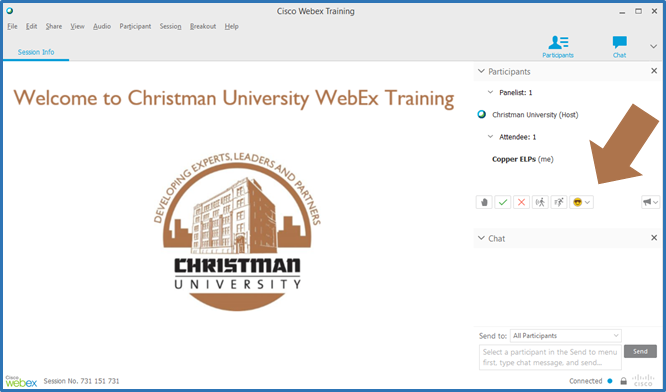

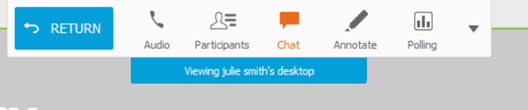
- 1. Participant List Displays attendees, host and presenters
Feedback
- a. Click the hand icon to get the presenter’s attention to ask questions or comment (You turn on and off)
- b.
Click Yes or No to answer presenter’s questions
- c. Use emoticons to show your status
- 2. Chat Type a question or message and choose who to send to, then click Send
- a. For help, send to Host
- b.
(The Presenter may not see your comment)
For questions or comments send to All Participants, so others know what questions have already been asked
- 3. Polling – Questions will be displayed when the poll is active. Watch the timer to see how much time you have to answer and click Submit to enter your responses in the poll results.
- 4. Annotate or Whiteboard (If you join with an iPad, you will have view-only access and not be able to write on the board)