How to modify distribution groups that I manage?
If you've been granted Owner privileges on an email distribution group, use the instructions below to manage membership of the group.
NOTE: Some distribution groups are configured as dynamic groups. Dynamic distribution groups automatically populate membership based on filters defined by IT and cannot be viewed or edited directly. A common example of these are the various regional and all-company groups.
If you follow these instructions to manage a group and don't see the group, or you can see the group but it looks like it's missing all of the people, you're probably dealing with a dynamic distribution group and should put in a helpdesk ticket for assistance. More information on dynamic distribution groups can be found HERE.
While it's possible to manage email distribution groups in Outlook, it's much easier to do it using the Exchange Online web interface.
- Navigate to https://admin.exchange.microsoft.com and log in with your account.
-
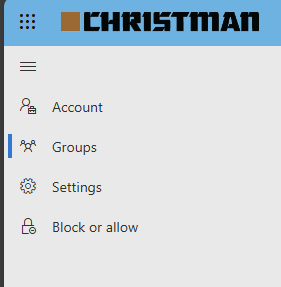
In the left navigation menu click Groups.
-
On the right, click the Groups I Own tab.
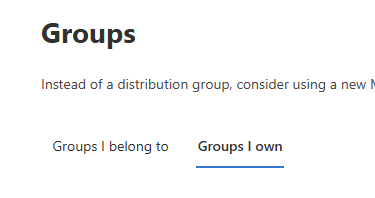
- In the resulting list, click the group you want to edit. A drawer will open on the right of the screen.
-
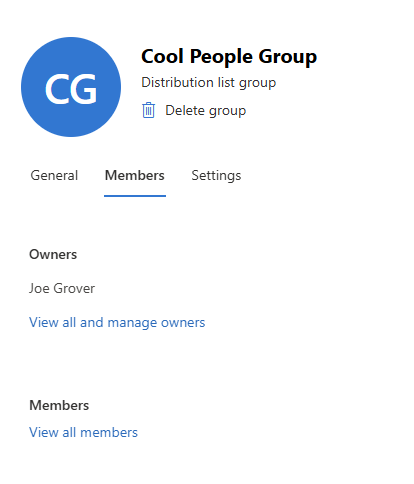
Click on the Members tab.
-
Here you can add both Owners (who can manage the group just like you are) and Members (who will receive emails sent to the group). You do NOT have to be a Member of the group to be an Owner, and Owners are NOT by default Members. In the example above, Joe Grover can manage the group, but without being in the Members he will not receive email sent to the group.
Let's add Joe by clicking on View all members, and then Add members.
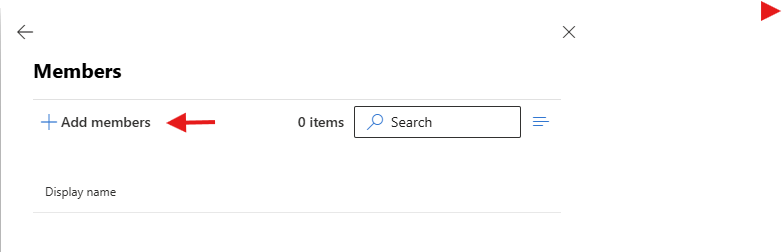
-
Type the user's name and press Enter and they should come up in the search results. Click the dot next to the name to select them. NOTE: The search box is not a wildcard search; for example, searching for Grover did not come up with Joe Grover so start with the first name.
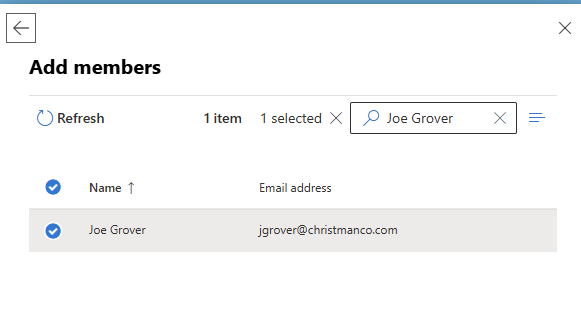
-
You'll see it now says 1 selected next to the search box. If you're only adding one person you can click the Add button at the bottom of the page. Otherwise, if you're adding multiple people just search for the next person and select them. You'll now see that 2 people are selected next to the search box.
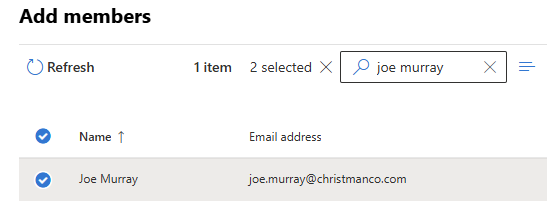
-
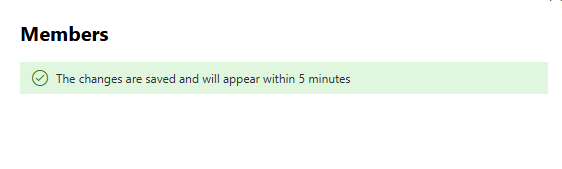
Continue adding people to the group, and when done click the Add button at the bottom. You'll get a message showing that changes should show up within 5 minutes.